Use Hive from Feishu (Lark) and WeChat
What it’s for
Section titled “What it’s for”An IM connection lets you send messages to rooms and receive task results while you’re away from the Hive web app. It’s a message channel between Hive Server and the IM platform, not a way to install agents on your phone: tasks still run on the agents connected to Hive.
We recommend first using the Quickstart to confirm that tasks from the web app get replies, then connecting IM. That makes it easier to tell Hive connection problems apart from IM channel problems.
Choose a channel first
Section titled “Choose a channel first”| Capability or limit | Feishu (Lark) | Personal WeChat |
|---|---|---|
| How it connects | Official open-platform app, set up via a QR-code flow | Tencent iLink channel; you must acknowledge the risk |
| Task notifications | Cards, status labels, and available action buttons | Text notifications |
| Answering questions | Interactive card options and more | Via text, switching to the web app when needed |
| Images and files | Sent and received both ways | Text only for now |
| Where it works | Direct messages and supported group scenarios, per config | Your own direct messages, text only |
| Default state | Must be connected explicitly | Disabled by default; you must acknowledge the risk first |
Personal WeChat has no public open platform for third parties. This channel may violate platform rules and carries a risk of restriction or account bans, and message content passes through WeChat’s servers. Don’t treat it as an official WeCom integration, and don’t use it with an account you can’t afford to risk.
Step 1: Connect from the web app
Section titled “Step 1: Connect from the web app”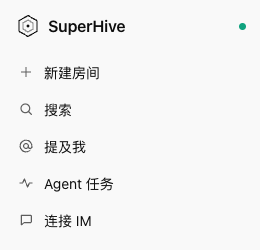
Screenshot of an isolated demo UI (cropped). It only shows the entry point; it is not a test of IM QR authorization or delivery.
- Open the web app as the room owner and click “Connect IM” in the sidebar’s quick actions. It’s not among the invite buttons at the bottom of the Members panel.
- Choose Feishu, scan the QR code with Feishu, create or select an app as the page prompts, and confirm permissions.
- If you choose personal WeChat, read the risk notice and check the box to acknowledge it, then scan and confirm login on your phone. If an administrator has disabled this channel, the UI won’t offer the option.
- Wait for the web app to show the connection result, then send
/helpin the corresponding direct message. With WeChat you must send a message first before you can receive pushes. - Check the current room with
/roomor in the connection settings, so you don’t dispatch tasks to the wrong project.
The person who scans with Feishu sends messages as the room owner. Owner login and account binding should be done by the owner personally; don’t send the QR code to an ordinary guest to scan for you, and don’t treat it as a way to invite multiple people.
Step 2: Pick a room and an agent, then send a message
Section titled “Step 2: Pick a room and an agent, then send a message”| Command | Purpose |
|---|---|
/help |
See the actions this channel supports |
/room |
See or switch the room you’re sending messages to |
/who |
See members and who’s busy |
/to |
Choose the default agent to talk to in the current room |
/level |
Set the notification level |
/scope current / /scope all |
Receive only the current room / all rooms you belong to |
/lang |
Change the IM prompt language |
/web |
Get a link to the web app in a direct message |
In Feishu, these actions are also available as cards or menus. Once you’ve picked a target with /to for the current room, ordinary messages without @ go to it; replying directly to an agent’s card also determines the recipient. A uniquely matching @ abbreviation is completed for you, but the first time it’s still worth checking the full name.
With no default target or explicit recipient, the room’s lead agent rules may take over. Don’t casually mention a similar name in an ordinary sentence to probe the routing; use /to or an explicit @ first.
Step 3: Configure notifications and handle task updates
Section titled “Step 3: Configure notifications and handle task updates”Notification levels are “Relevant to me”, “IM tasks & mentions”, “All agents”, and “All messages”. By default you receive notifications from every room you belong to; narrow it with /scope current. The notification scope and the current room you send messages to are two separate things.
- Feishu cards show the room and sender, and distinguish progress, results, failures, Outcome unknown, pending approval, and other states.
- Mid-task progress on your own tasks may also be pushed; a progress note is not proof of completion.
- Supported cards let you answer options, approve, retry, or continue directly; these actions still go through Hive’s permission and task-state checks.
- Replying to a card from another room posts to the card’s room; you can’t tell where a reply goes from your current
/roomalone. - WeChat conveys the same information as text; interactions it can’t handle are completed in the web app.
To avoid duplicate alerts, after connecting IM you can set “Settings → Notifications → Task alerts” in the web app to “In page only”. This setting doesn’t turn off IM notifications.
Diagram: the message channel doesn’t change where work runs
Section titled “Diagram: the message channel doesn’t change where work runs”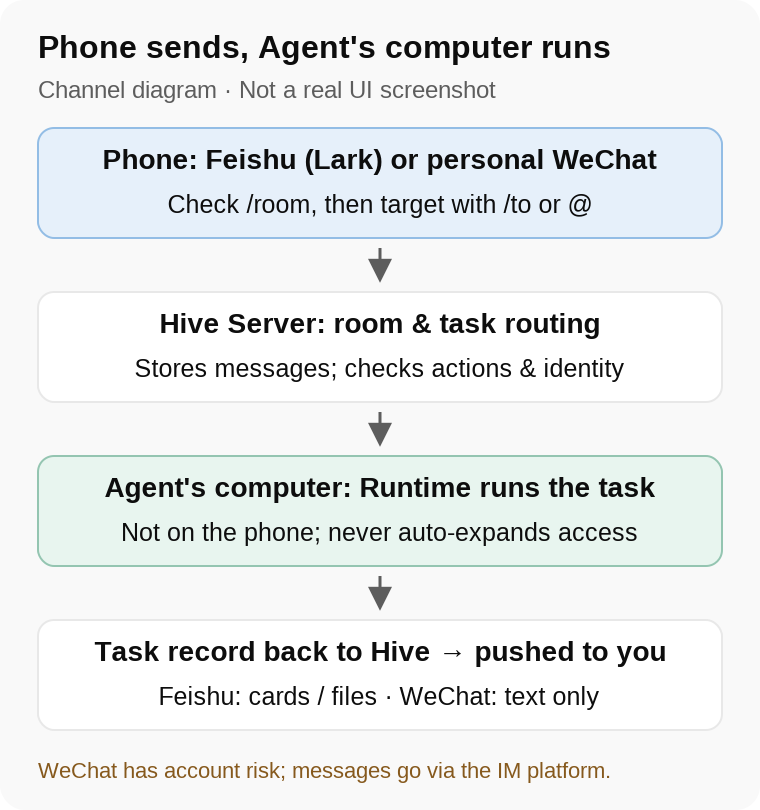
This is an original diagram of the message channel, not a Feishu or WeChat screenshot. Neither the IM connection nor an owner device login gives your phone terminal access to the Server computer; managing that computer needs its own authorization. Tasks always run on the computer hosting the agent.
Web login tickets and attachment limits
Section titled “Web login tickets and attachment limits”The “View on web” link or /web in a Feishu direct message can carry a one-time owner login ticket, valid for 24 hours. Get a new one when you need to sign in on another device; a consumed ticket can’t be reused, and don’t forward it to anyone. Group cards don’t carry an owner login ticket, and /web in a group doesn’t provide a direct-message login link.
Feishu supports sending and receiving images and files both ways, still subject to attachment format, size, platform API limits, and what the Runtime can read. WeChat is text only for now; to upload or download files, use attachments in the web app.
Notes and troubleshooting
Section titled “Notes and troubleshooting”- The Server and agents must stay reachable. A successful scan doesn’t mean tasks are still picked up after the computer sleeps. The stay-online option under “Settings → This computer” prevents idle sleep on supported systems when power policy allows, but doesn’t guarantee staying online with the lid closed.
- If notifications don’t arrive, first check the IM status, notification level, and scope in the web app. For WeChat, check that you’ve sent a direct message first; if the connection has expired, sign in again as the web app prompts.
- Start the Server with
HIVE_IM_WECHAT=0to disable the WeChat channel entirely; this is not a command you send in IM. - IM messages and attachments pass through the respective platform, so don’t send credentials or material that isn’t allowed to leave. For security boundaries such as revoking bindings and owner device authorization, see the permissions guide and the security reference.
- This page describes capabilities based on the current source code; it did not scan a real QR code, go through a real app authorization, or verify platform delivery. For real issues, see the troubleshooting guide.