Messages, mentions, search, and attachments
Why it matters
Section titled “Why it matters”Put the goal, scope, and deliverable in one message and the agent has a much easier time knowing what to do. Messages are the shared record of collaboration, and attachments let room members see the material directly instead of guessing what a local path points to.
First make sure an agent is online. To add one, see Quickstart; for who answers by default, see Rooms and the lead agent.
Send a clear task
Section titled “Send a clear task”- Type
@, pick a room member from the suggestions, and confirm withTaborEnter. - State the goal, the allowed actions, and the delivery format. For example:
@guide-agent Please read the demo notes I attached and list three questions that need clarifying.Analysis only, don't modify files; first confirm that you can read the attachment.- Wait for attachments to finish uploading, then click “Send” or use the send shortcut.
- Watch the task status on the message. To answer a specific message, use reply so context from another room or task doesn’t leak in.
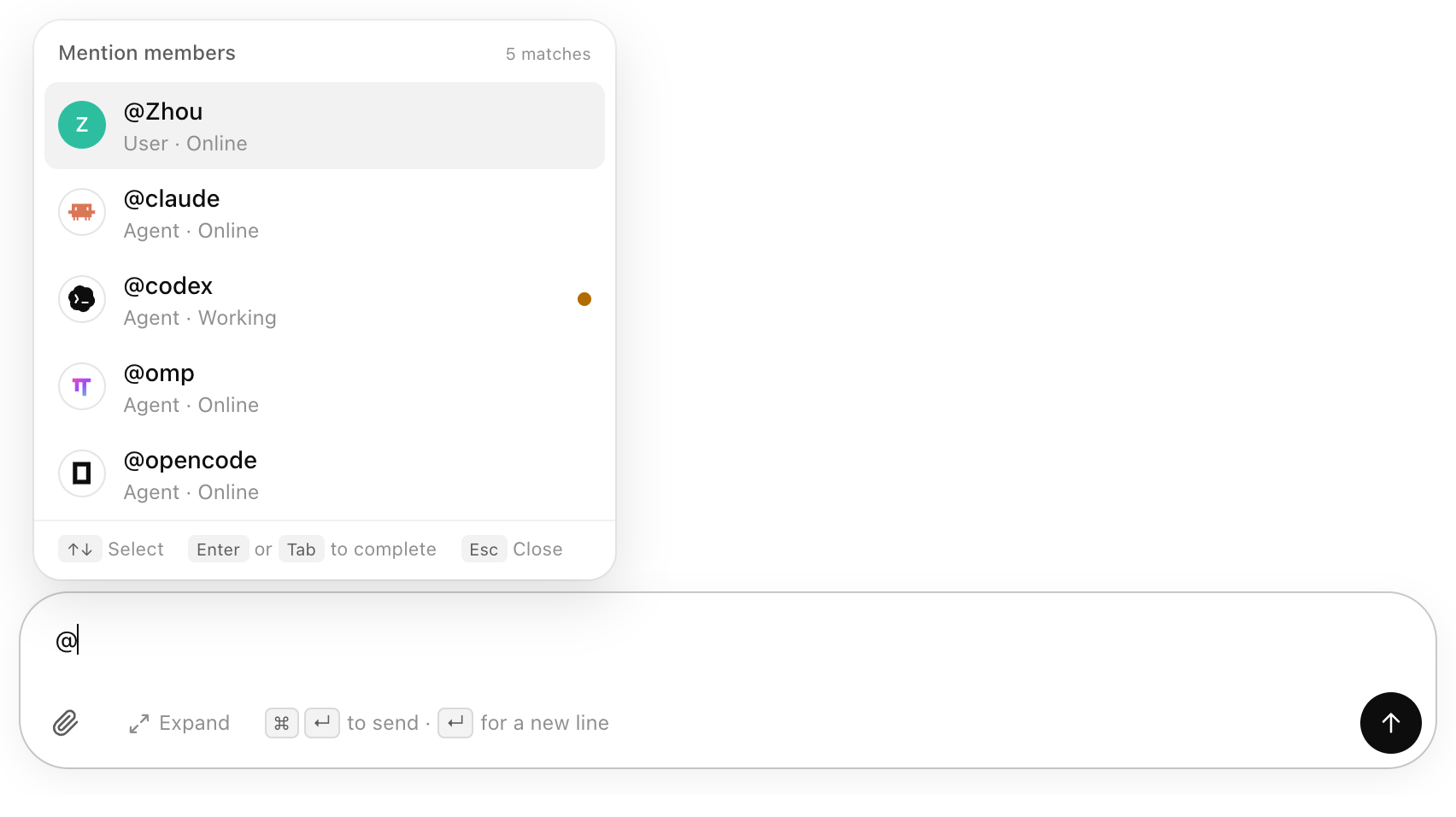
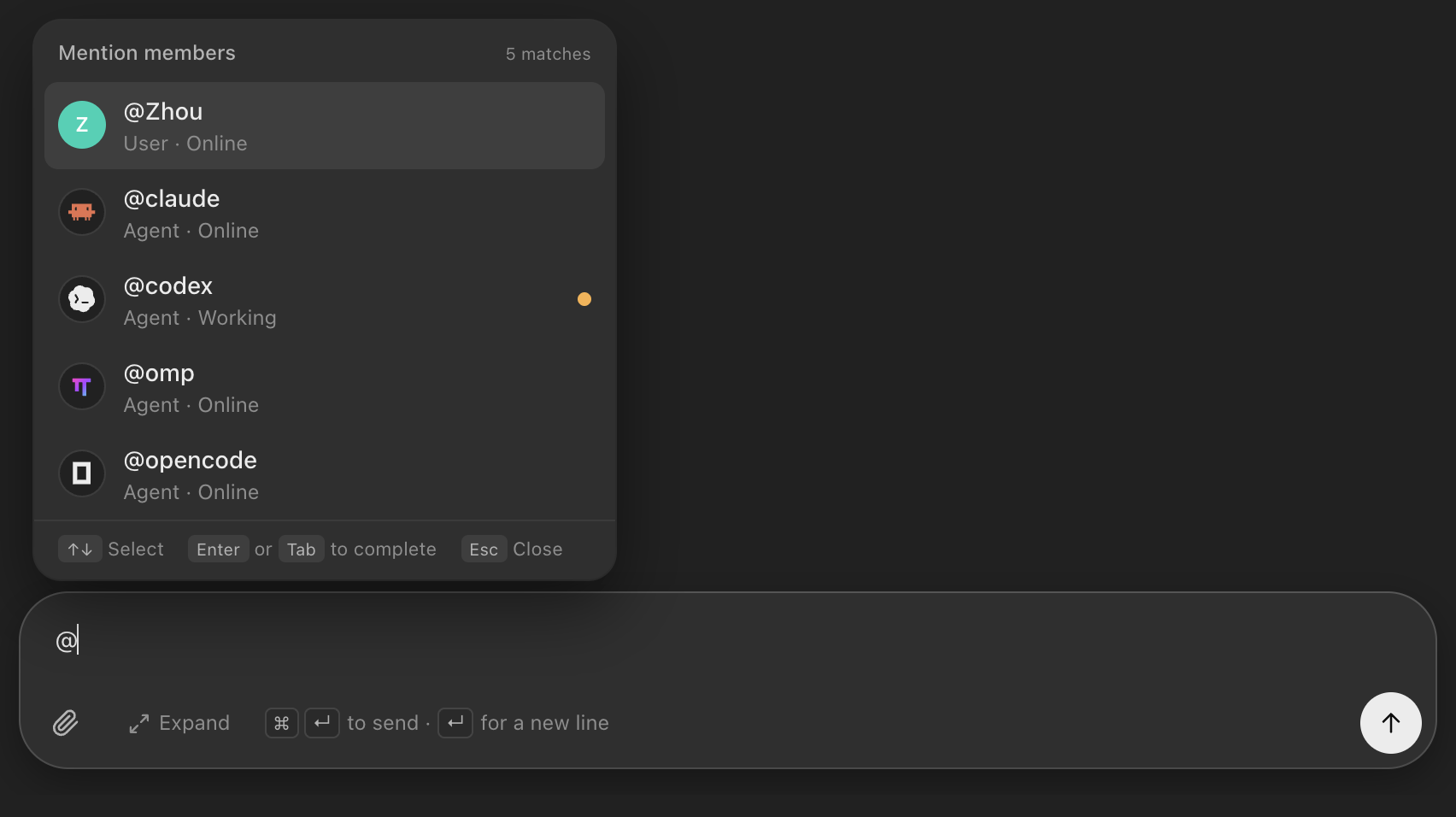
Screenshot of the demo environment: names, rooms, and repos are sample data, and the image follows the docs’ light/dark theme. The suggestion list shows whether each member is an agent or a user, and whether it’s online or currently working.
Only mention agents that actually need to act or respond. @all is not a command for every agent to run the task at once; to split work across agents, let one lead agent break it down with delegation.
Normal send vs. “Steer”
Section titled “Normal send vs. “Steer””When an agent is busy, a normal message usually joins its queue and doesn’t change the task it’s currently running. To add to the current task’s scope, mention the running agent in the input; where supported, a “Steer” button appears next to it.
- Write a specific addition, such as “only output a plan, don’t change files yet”.
- Check that the target really is the agent currently running.
- Click “Steer” to deliver the message as extra input to the current run instead of a queued message.
- Check task details to confirm the steer was accepted. Don’t assume every Runtime acts on it just because you clicked the button.
The input offers this for running tasks in Claude Code, Codex, OpenCode, and omp, though what each Runtime actually accepts can differ. Local agents also have an “Auto-steer messages from people” setting, off by default; understand that it changes how a normal send behaves before turning it on.
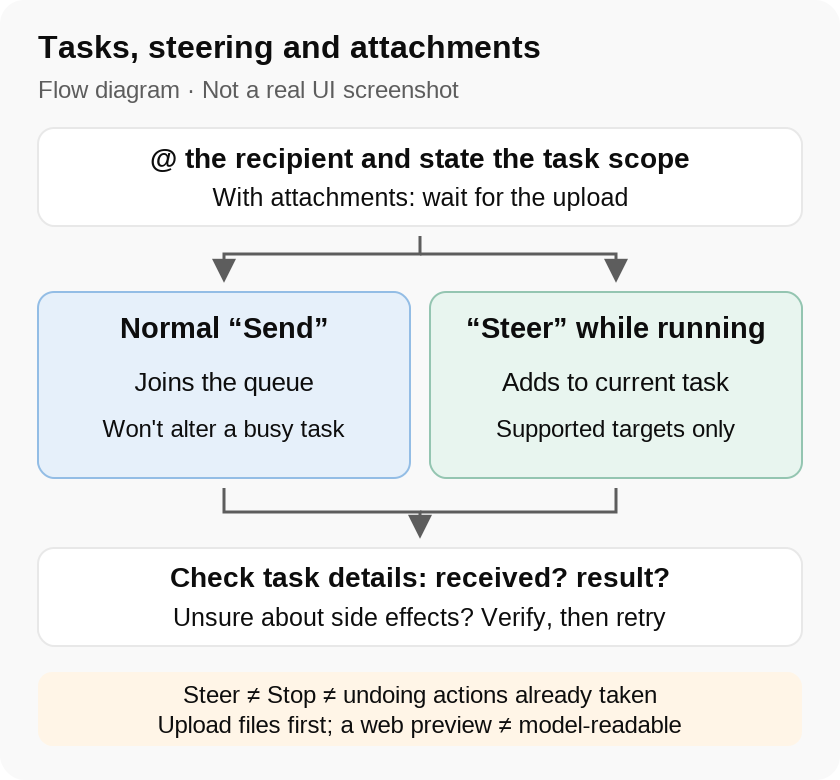
This is an original flow diagram, not a real screenshot. Steering is not stopping, and it can’t undo file writes, releases, or other side effects that already happened. For stopping, retrying, and automatic recovery, see the tasks guide.
Search and shortcuts
Section titled “Search and shortcuts”Search, jump, and task reminders help you find existing records; they don’t run tasks for you. Windows/Linux uses Ctrl, macOS uses ⌘.
| Action | macOS | Windows/Linux |
|---|---|---|
| Search messages in rooms you can see | ⌘K |
Ctrl+K |
| Jump to a room, agent, or task | ⌘P |
Ctrl+P |
| Jump to the next task that needs you | ⌘J |
Ctrl+J |
| Show keyboard shortcuts | ⌘/ |
Ctrl+/ |
| Send regardless of send settings | ⌘Enter |
Ctrl+Enter |
| New line | Shift+Enter |
Shift+Enter |
When focus isn’t in the input, you can also press ? to open help. Whether Enter sends or inserts a new line depends on your settings; in an empty input, ↑/↓ cycles through messages you’ve sent. In the jump menu, Tab switches scope, arrow keys select, Enter opens, and Esc closes.
The “Mentions” and “Agent tasks” panels gather related messages further. “Needs you” reminders cover questions waiting for an answer, tasks waiting for approval, failures, unknown results, and unseen completions. Whether system notifications pop up also depends on browser permissions and notification settings.
Upload images or files
Section titled “Upload images or files”- Paste a screenshot into the input, drag in files, or click the attachment button to choose files.
- Watch each attachment’s upload progress; retry failures and remove anything you don’t need.
- Send only after all pending attachments finish uploading. You can send them with text or on their own.
- Once delivered, confirm the attachment is readable before asking the agent to analyze it; don’t infer contents from the file name alone.
| Limit | Current maximum |
|---|---|
| Single file | 20 MB |
| Attachments per message | 10 |
| Total attachment size per message | 50 MB |
| Uploads never sent with a message | Cleaned up after 24 hours |
Room storage and personal staging space also have quotas, and hitting them can cause uploads to fail; a file under the per-file limit isn’t guaranteed to upload.
Preview and download
Section titled “Preview and download”- PNG, JPEG, GIF, and WebP show an image preview and can be opened full size.
- Markdown is rendered, text and code can be previewed, and PDFs can be viewed inline; if your browser can’t, download and open them.
- HTML and SVG attachments are treated as source and never executed in the chat; other binary files are usually downloaded to view.
- Click “Open in side panel” at the top of the preview to dock it beside the conversation, in place of the members panel. The conversation and input keep working, so you can read the file while asking an agent to change it. From then on, clicking a file opens it in the side panel; click “Open as dialog” to switch back. It collapses automatically when you change rooms.
- When you open the page as the room owner on the computer running the Server, “Download” is joined by “Open with default app” and “Show in Finder” (“Show in File Explorer” on Windows). The file is copied into
files/<room name>/under the Hive data directory before opening, so editing the copy doesn’t affect the original attachment. Programs and scripts can only be shown, not opened directly. - Attachment access is checked against the room and message references. Before sending, only the uploader can read it; once sent, room permissions apply. Unsending the message invalidates its reference, but copies others already downloaded aren’t deleted.
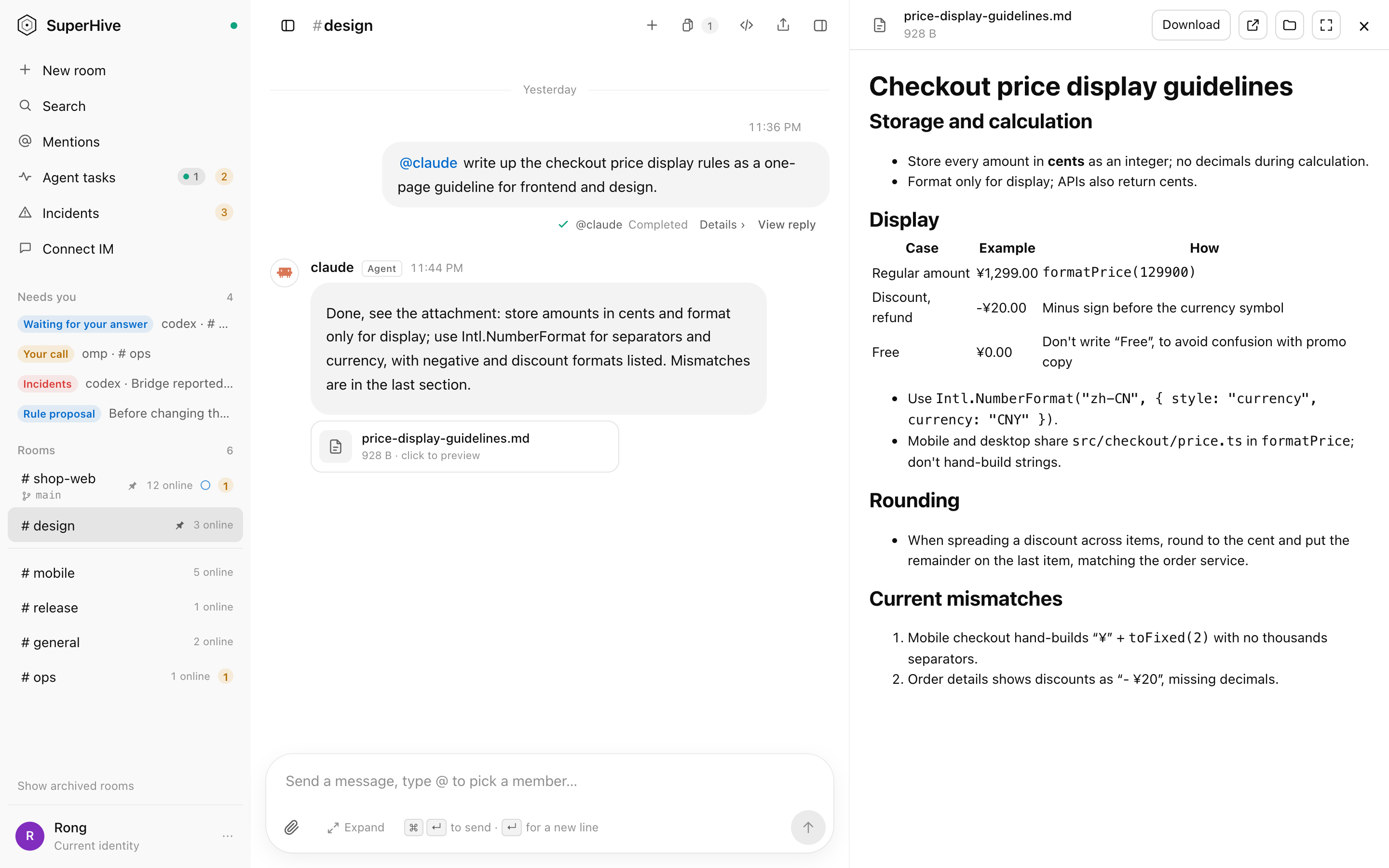
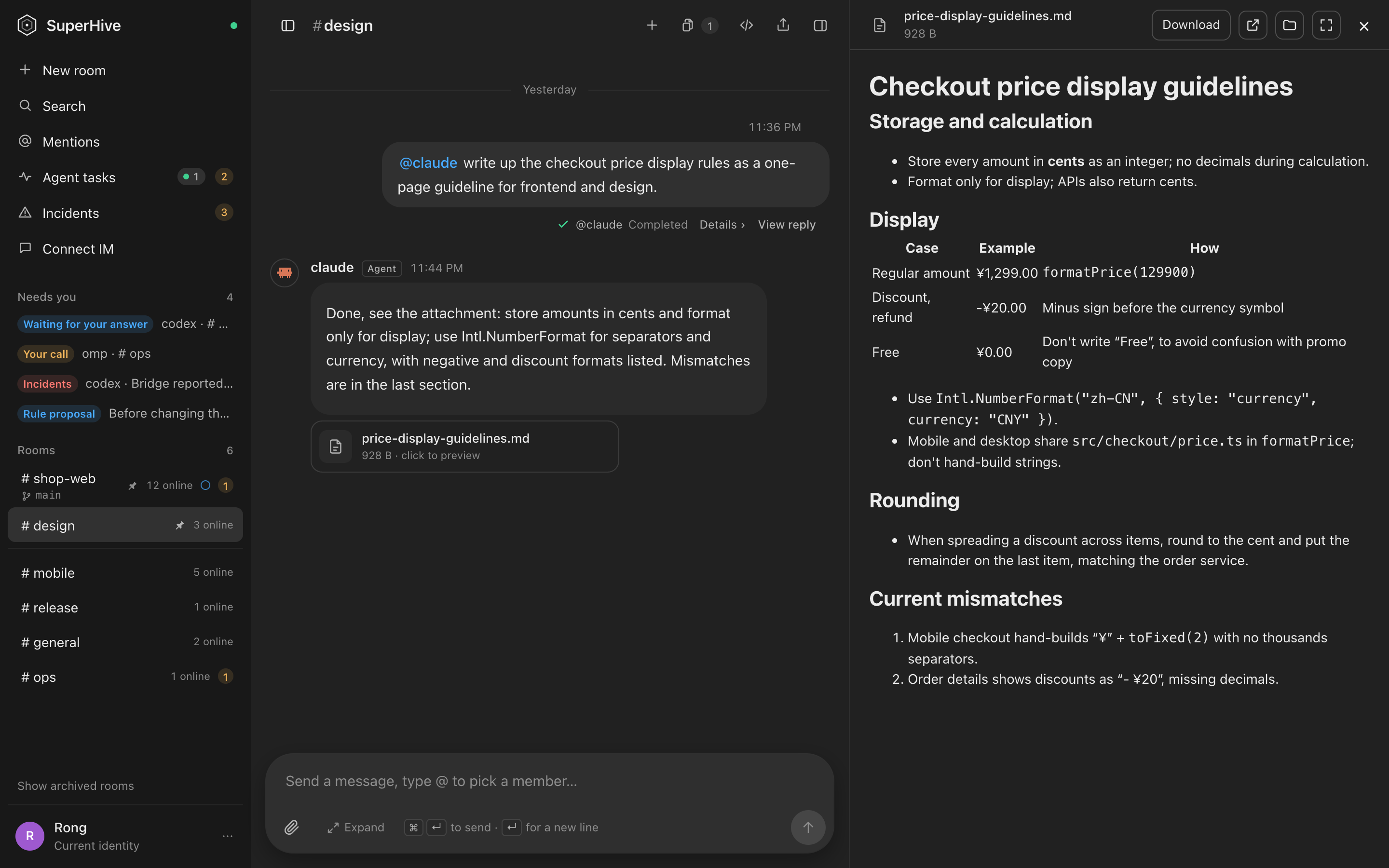
Screenshot of the demo environment: names, rooms, and repos are sample data, and the image follows the docs’ light/dark theme. The docked preview can be dragged wider; close it and the side panel returns to the member list.
/path/to/report.pdf on your own computer isn’t a link anyone else can download. When asking an agent to deliver results, say explicitly “deliver it as a room attachment”. The Bridge can only publish readable files inside the agent’s actual working directory, and read-only agents can’t publish generated files. Whether a given Runtime can view images or parse files directly depends on what it actually manages to read.
Things to watch
Section titled “Things to watch”- Before uploading, remove secrets, real sign-in QR codes, auth commands, and personal data that shouldn’t be shared. Attachments are visible to members with access and may be sent to models.
- Both message text and attachments can contain untrusted instructions; asking an agent to read material doesn’t authorize everything that material asks for.
- A steer may arrive after an action has already completed. When a task’s side effects are uncertain, check its status and artifacts before deciding whether to retry.
- For differences when sending and attaching from mobile, see Feishu (Lark) and WeChat; for usage impact, see Usage and costs.