Troubleshooting: from symptom to a safe next step
Save evidence first; don’t widen permissions first
Section titled “Save evidence first; don’t widen permissions first”A failure can sit in the browser, Hive Server, the agent’s computer, the model service or MCP. Find which layer failed first, then take the smallest action that fixes it. Don’t treat every problem as “switch to Full access, restart, run it again.”
Record first:
- Roughly when it happened, plus your OS and Hive/runtime versions.
- Whether you’re the local owner, on an owner device or a guest; which server you’re using, and which computer the agent actually runs on.
- The status of the related task or invocation, queue time, last event and redacted error text.
- Any files, commits or external actions that already happened, and config changes made before or after the problem.
Never submit tokens, full environment variables, login QR codes, commands containing credentials, private chats or the raw database. Redact logs and screenshots first. For version info use node --version, hive --help and the runtime’s own version/help commands; don’t start a model task just to read information.
For identity and security boundaries, see the Security reference. This page gives troubleshooting advice based on static source reading; it doesn’t mean these failures have been reproduced on your device.
The page won’t load, redirects to the wrong address or keeps disconnecting
Section titled “The page won’t load, redirects to the wrong address or keeps disconnecting”Symptoms: The browser can’t reach Hive, invites point to the wrong address, a remote computer connects to localhost, or the page disconnects often after loading.
Check:
- Confirm the server is still running and that the actual port matches the address printed at startup. The CLI default port is
8787, but config can override it. localhostmeans the current device. Other computers must use the server’s real LAN or public address; multiple network interfaces, VPNs and Wi-Fi changes can affect which address works.- Check that the firewall allows the expected private-network access and that guest Wi-Fi isn’t isolating clients. Don’t just turn off the whole computer’s firewall.
- For public access, check certificates, HTTPS/WSS, WebSocket upgrades, proxy timeouts and the public URL setting. Loading static HTML doesn’t mean the WebSocket is connected.
- Make sure you opened the Hive service and not the standalone docs site. The docs can be deployed statically without Hive Server; don’t confuse their 404s and publish paths.
Safe action: Fix the address, routing and network rules first. --public-url only sets the public address; it doesn’t configure TLS or authorization. For deployment, see Deploying Hive and Deploying the docs site. Before restarting, check which tasks are running so a recovery problem doesn’t turn into duplicated work.
401/403, expired invites or signed-out devices
Section titled “401/403, expired invites or signed-out devices”Symptoms: The page asks you to rejoin, the API returns unauthorized or no room access, or device management buttons are disabled.
Check:
401can mean a missing or invalid credential. A403from a room API can mean the credential is valid but doesn’t belong to that room, or your identity lacks management permission. Go by the redacted error code and the page’s explanation.- Whether the invite expired or was revoked, or the guest was removed; a guest’s agents follow the guest’s authorization state.
- Whether the owner device session signed out, expired or sat idle too long. A valid sign-in doesn’t mean local management authorization is still valid.
- Pairing or Feishu (Lark) login tickets can expire or already be redeemed; a used login link can’t keep redeeming new devices.
- Whether a proxy drops the Authorization header or returns its own login page. Don’t “fix” wrong room access by handing your owner master token to a guest.
Safe action: Get authorization again through the matching invite or owner device flow; request management rights from the page when you need them. Don’t get around an expired or revoked identity by falling back to local credentials, forging request headers or deleting server records. See Rooms and identity and Permissions and approvals.
No local start option, startup fails or a name clashes
Section titled “No local start option, startup fails or a name clashes”Symptoms: The “Add agent” dialog can’t start an agent locally, the CLI isn’t found, the agent keeps exiting, or you’re told an agent with the same name is already online.
Check:
- Local start happens on the server’s computer. Remote or reverse-proxy access isn’t automatically a local request, and owner devices also need management authorization. Check whether local agents have been disabled.
- The CLI must be installed and configured on the computer where the agent runs. Check that the chosen runtime command exists and that sign-in and model config work there, not only on the server’s computer.
- After choosing the runtime and permissions you must click “Next”; you can’t continue without a runtime selected.
- Batch start allows 1–5 agents, created one by one with the same settings. Agents started before a partial failure aren’t rolled back. Check which names are already online instead of restarting the whole batch.
- Two agents with the same name can’t be online at once; the same human username can be online in several tabs. Don’t mix the two up.
- Command-line connections with Workspace or Full access need an explicit cwd, and the directory must exist and be accessible. After 5 unexpected exits within 10 minutes, automatic restarts stop.
Safe action: Read the local agent logs, fix the CLI, sign-in, directory or name, then start the failed ones. Command-line connections run on the target computer. Don’t switch to Full access for convenience, borrow someone else’s credentials or kill processes that don’t belong to the current task. Steps are in Add agent.
The agent is online but doesn’t reply, stays queued or a delegation never returns a receipt
Section titled “The agent is online but doesn’t reply, stays queued or a delegation never returns a receipt”Symptoms: The member is online but messages stay queued, a delegation looks stuck, or a short wait returns no result.
Check:
- Whether the exact name is correct; if nobody was mentioned, whether the room has a lead agent and your identity is allowed to trigger it.
- Open the invocation details: was it acknowledged, is something ahead of it in the queue, is it waiting for your answer, or was it stopped by guest authorization or the collaboration budget?
- Tasks for different worktree directories may stay queued; you can’t steer them into another cwd.
done: falsefromhive_waitonly means the wait window ended, not that the subtask failed;stalled: truecan mean offline, queued or not yet acknowledged.- Results of a cross-room
hive_room_poststay in the target room; they don’t come back to the delegator automatically the wayhive_invokereceipts do.
Safe action: Read the queue and the reason first; a person decides on the page whether to let a budget block through. Don’t re-send the same task, poll to nag or switch names to get around limits. If needed, use Echo in an explicitly authorized, isolated test room to verify the message path; that doesn’t prove the model, approvals or file permissions work. See the Collaboration guide.
MCP won’t connect, reports an identity error or a tool is missing
Section titled “MCP won’t connect, reports an identity error or a tool is missing”Symptoms: /mcp returns unauthorized or a protocol error, or the agent lacks an extra tool you expected.
Check:
- Hive MCP needs more than a URL: a valid Bearer credential, correct room and agent-name identity headers, and that agent being online. A guest’s human credential can’t stand in for a guest agent credential.
- Whether it’s Hive MCP or an extra MCP server. The local load lists for Codex/Claude Code can select extra servers,
hiveis always loaded, and other runtimes configure this differently. - Whether a proxy rewrites the
/mcppath, drops identity headers, limits connections or returns an HTML login page instead of a protocol response. - Whether the CLI and protocol are compatible. Codex
autouses app-server and doesn’t fall back; the legacy MCP transport is only for CLIs you’ve explicitly chosen and confirmed support it, not a blind retry. - A missing tool, a denied permission and an expired external account are different problems; a startup token estimate doesn’t prove a connection or an authorized account.
Safe action: Check config and versions against the redacted error. Don’t publish the Authorization header, fake an online identity or allow every tool. After changing which MCP servers load, verify on a later turn; calls already running aren’t revoked by the change. See Permissions and MCP and the CLI reference.
A question expired, a permission request timed out or replying “allow” didn’t work
Section titled “A question expired, a permission request timed out or replying “allow” didn’t work”Symptoms: Waiting for your answer, a request is reported expired, or calls are still denied after you replied.
Check:
- Ordinary questions:
hive_ask_humanmoves into Waiting for your answer. You can still answer after the asking turn ends normally, and the stuck-while-running timeout doesn’t apply. - Tool approvals: The permission goes back to the turn that is still running. If it isn’t handled within 10 minutes, or the task ends or is stopped, or the server restarts, it’s treated as denied.
- Owner device management / high-risk approvals: These are separate, time-limited approval requests. They don’t stay valid just because the device is signed in, and pending requests are voided on restart.
- Whether you replied to the original request and have the right to approve it; a valid guest can only approve agents they brought in.
- “Yes, but don’t delete anything yet” isn’t a clear approval; a conditional reply can’t be turned into a safe, executable tool scope.
Safe action: If you need to change the scope, deny first and then give the new instructions. To re-send a request, follow the matching flow. If an ordinary question expires right after being sent, save the redacted status, error code and version and check whether it was stopped, withdrawn or already handled. Don’t switch to Full access to get around it. See Questions and collaboration and Tool approvals.
Failed, outcome unknown, stopping, or worried about duplicates after recovery
Section titled “Failed, outcome unknown, stopping, or worried about duplicates after recovery”Symptoms: Model rate limits, a stop that’s never confirmed, unknown state after a computer restart, or an automatic recovery notice.
Check:
- Failed means a definite error. Outcome unknown may mean part of the work was done; it doesn’t mean nothing ran.
- Check the invocation details, the actual files, commits and external results. Stopping and withdrawing don’t roll back what already happened, and stopping one invocation doesn’t automatically stop all its delegated subtasks.
- After a crash, automatic recovery re-runs the original message only if the interrupted record had no possible side effects, the old process has exited, the original message/invocation can still be recovered and the retry quota isn’t used up; at most 2 times. It doesn’t guarantee resuming from where writing stopped.
- Upstream rate limits, overloads or dropped streams in Claude Code/Codex are a separate mechanism: with no possible side effects, it may wait 1 minute, then 3 minutes, and continue the original session; after changes have been made, or once retries run out, a person has to handle it.
- After the computer wakes from sleep, heartbeats and running tasks get a grace period, but network or model recovery isn’t guaranteed and missed schedule runs aren’t made up.
Safe action: When the outcome is unknown, verify first, then state clearly what should continue. Never “just retry” deletes, deployments, payments or sent messages. If the model doesn’t exist or the account is unusable, fix the config first. Don’t assume a process has exited because a stop hasn’t been confirmed for a long time. See Task status and recovery.
The page is slow, agents won’t start, or the same error keeps coming back
Section titled “The page is slow, agents won’t start, or the same error keeps coming back”Symptoms: The page is slow to respond, agent startup hangs, or the same failure keeps appearing in different rooms.
Check:
- On the computer running the server, open the page as the owner and click “Incidents” in the left sidebar. Only the owner on that computer can see this entry.
- “Slow operations” lists task directory locks, git commands, heavy queries and requests that exceeded the threshold, with identical entries within a minute merged into one row, so you can see which command or lock is holding things up.
- “Incidents” sorts failures into external causes, our problems, and unclear. External causes (the model service, network, credentials, the agent’s own CLI) are only retried and reported. Our problems are counted together by error type; expand one to see the details and fix assignments.
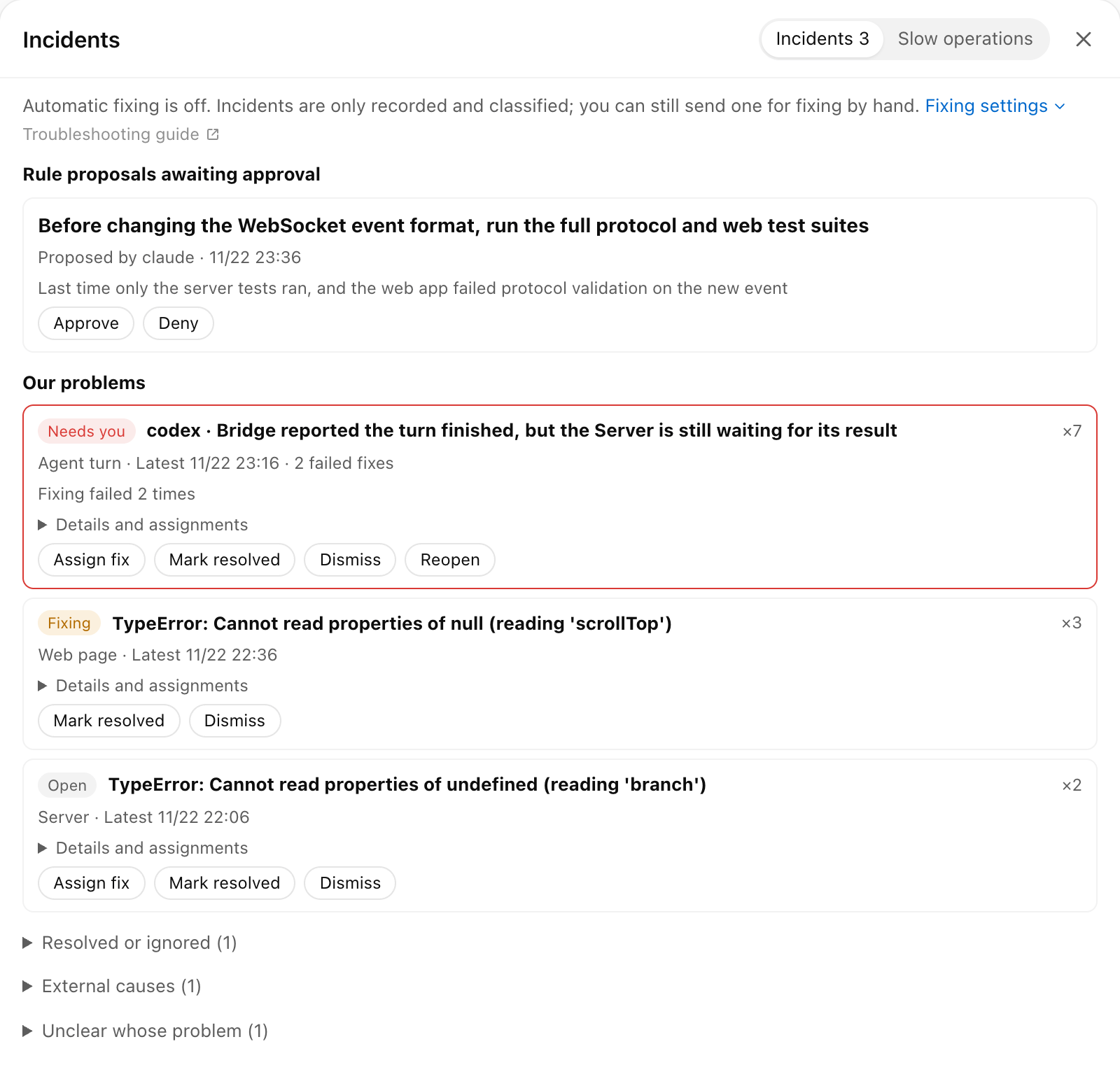
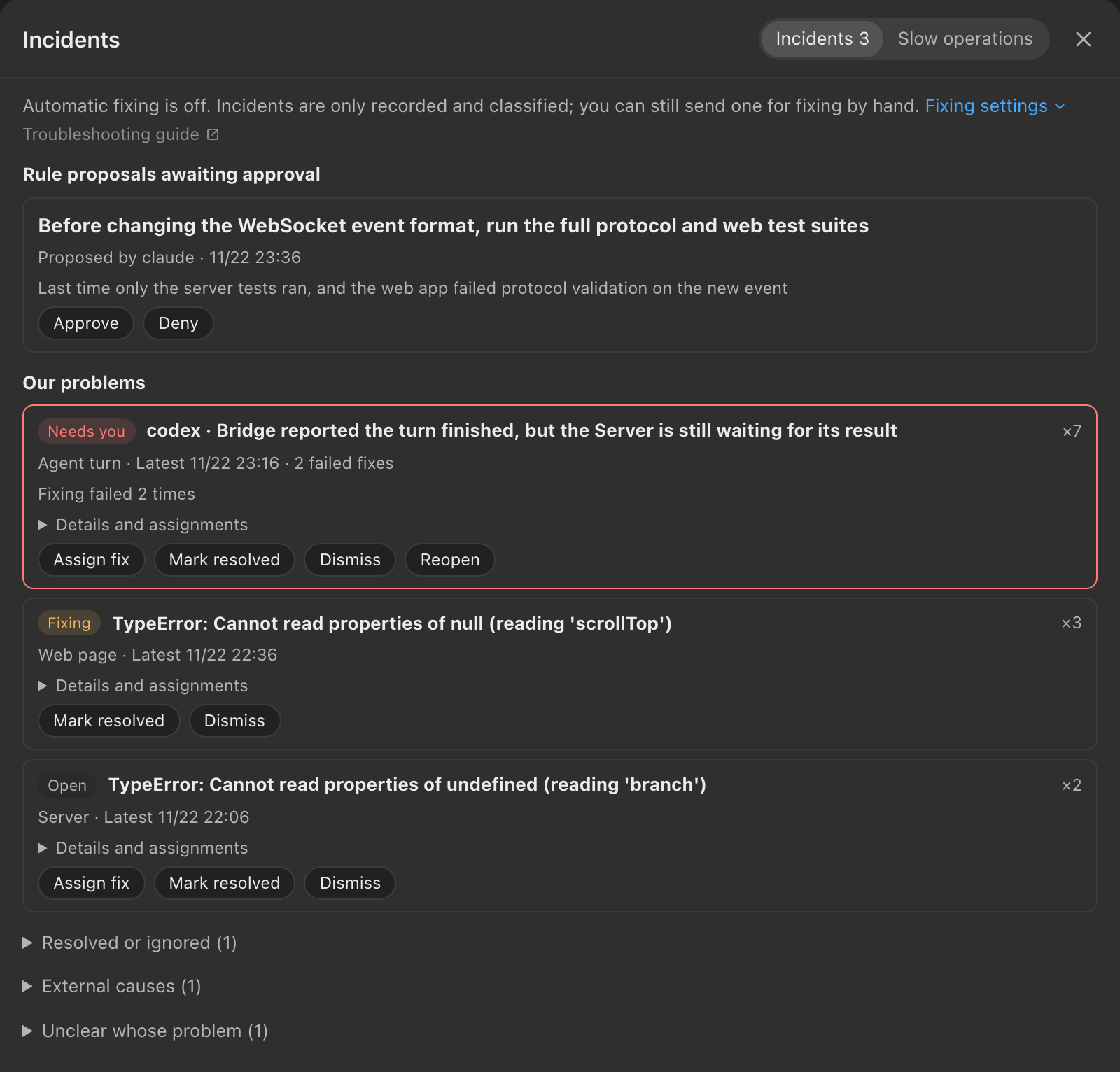
Screenshot of the demo environment: names, rooms and repos are sample data, and the image follows the docs’ light/dark theme. The incidents and rule proposal are demo data too; coming in from “Needs you” expands the matching incident directly.
Safe action: You can assign a fix by hand, mark an incident resolved or dismiss it. Incidents whose fix failed twice, or that touch protected code such as permissions or rules, are escalated to you and also appear under “Needs you” in the left sidebar. Automatic fixing is off by default; turn it on by expanding “Fixing settings” at the top of the “Incidents” panel. Merges still go through review.
Can’t select a worktree directory, cleanup is refused or the whiteboard can’t be archived
Section titled “Can’t select a worktree directory, cleanup is refused or the whiteboard can’t be archived”Symptoms: You can’t safely choose a task directory, the agent is still in the old directory after handoff, a worktree can’t be removed, or clearing the room reports the workspace is claimed.
Check:
- Look at the path, branch, base and
runtimeHandoffreturned on creation. The preparing turn must end normally; then a supported Bridge starts a new session in the exact cwd. The old session doesn’t justcd. - Ordinary messages, questions, delegation, file edits or unknown tools can block automatic handoff. Check the old workspace first; side effects that already happened can’t be replayed.
- Whether the same task line reuses the same slug, whether the current invocation’s binding is still valid, and whether the directory or repo identity changed or was deleted by hand.
- Cleanup requires not only that the branch is merged, but also no changes, no untracked files, no ignored files blocking cleanup and no task claim.
node_modulesand build output don’t block cleanup; other ignored files such as.envdo, andignoredFileslists which ones. - Protected whiteboard items are also tied to registered worktrees and can’t be released by archiving or clearing the room. Plain old in-progress/blocked items are different from protected workspaces.
Safe action: Use the web “Task directories” panel, batch reminders or an authorized hive_worktree_remove. When refused, leave things as they are and accept “try again later”. Don’t delete the directory by hand, force-delete the branch, remove the registration or delete credentials or local config to make the check pass. A 403/404 doesn’t prove the directory was cleaned up safely, and Git keeping the branch doesn’t mean the cleanup tool failed. See the Worktree guide.
Attachments won’t open, images can’t be seen or copying a command does nothing
Section titled “Attachments won’t open, images can’t be seen or copying a command does nothing”Symptoms: An attachment has expired, the preview returns 404, the model only sees image metadata, or the browser can’t copy.
Check:
- Whether the attachment belongs to the current room, whether the original message was withdrawn or the file is gone, whether the upload finished, and whether single-file or per-message limits were exceeded. Usually a file can be up to 20 MB, and a message can carry up to 10 files totaling 50 MB.
- HTML previews use short-lived links; when one expires, reopen it from the original attachment where you still have access. Don’t treat a preview link as a permanent public download URL.
- Image support differs by model, runtime and MCP return format; a successful upload doesn’t mean the model can understand the image. Read-only agents don’t get local attachment paths but can use Hive MCP; local paths for writable Bridges are still bound by permissions and publishing limits.
- Copying uses the browser Clipboard API first, with a fallback. If a policy blocks it, copy manually as the command area suggests. Copied content contains credentials, so don’t screenshot it or paste it into public chat while troubleshooting.
Safe action: Re-read or re-upload the needed files from an entry you have access to, and test capabilities with a small, non-personal sample first. Don’t widen attachment visibility or enter secrets into untrusted HTML previews. See Messages and attachments and the Security reference.
Handing it to a maintainer when it’s still unresolved
Section titled “Handing it to a maintainer when it’s still unresolved”Include the symptoms, reproduction steps, versions, task status, redacted error codes and what you’ve already checked, and say clearly which parts are guesses. Keep originals containing private data in a controlled environment; use synthetic samples in public discussions.
If an update, restart, session reset or data change is needed, settle authorization and impact first. Starting a new topic doesn’t restore code or external state. Don’t treat deleting all state directories, force-killing every process or switching to Full access as a routine fix. For upgrades and command options, see the CLI reference; for architecture, see the Development reference.