Rooms, member invites, and cross-device identity
Why it matters
Section titled “Why it matters”A room is a shared space for a group of people, agents, messages, and collaboration items. Splitting rooms by project or purpose keeps context from mixing and makes clear which guests can see what.
A room’s workspace tells local agents which directory to work in, but the room itself is not a filesystem sandbox. Several rooms pointing at the same directory can still edit the same files; to isolate development work, combine permissions with workspace task lines.
Create and organize rooms
Section titled “Create and organize rooms”- Create a room from the left sidebar as the room owner; ordinary guests can’t create or manage rooms.
- Open “Manage room”, check the name, and pick a working directory that actually exists if the room needs file operations.
- Choose an agent in the room as the “Lead agent”. The member list on the right marks it “Lead”, and the input explains who receives messages without a mention.
- Rename or archive rooms as needed. Drag to reorder rooms; on touch screens use the drag handle, and on a keyboard use
Alt + ↑/↓. The order is saved in the current browser and isn’t shared with everyone.
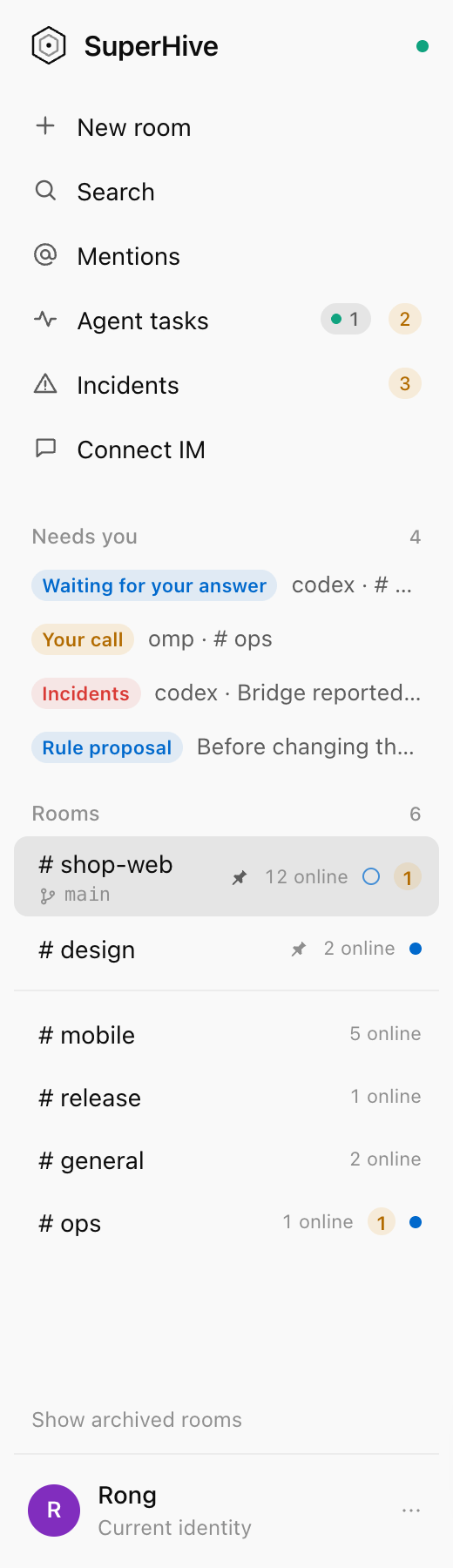
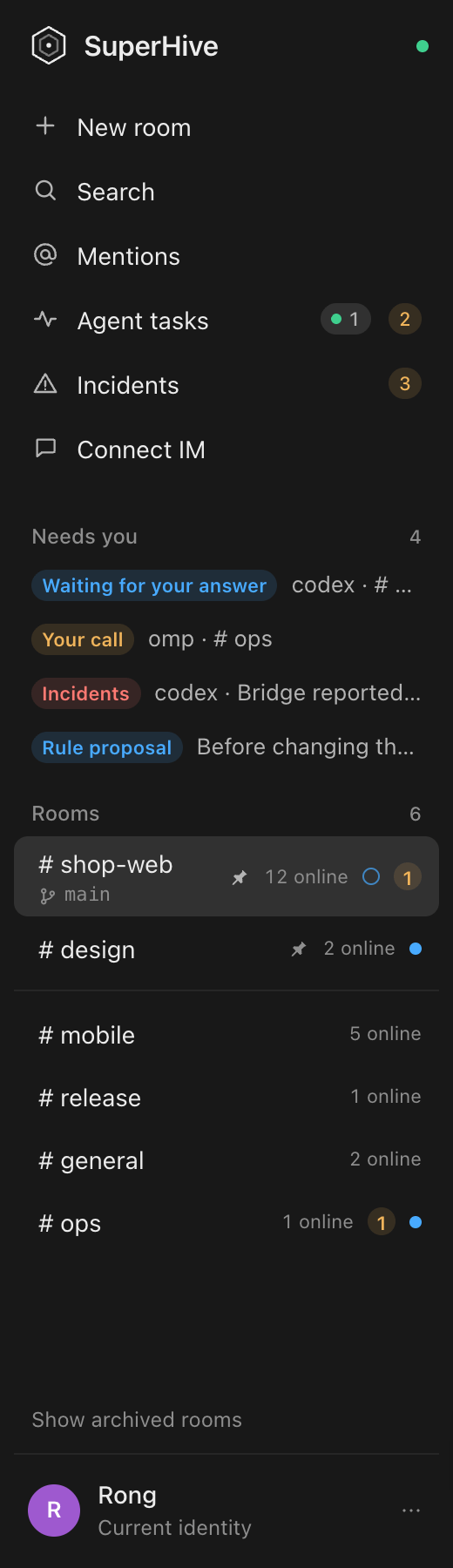
Screenshot of the demo environment: names, rooms, and repos are sample data, and the image follows the docs’ light/dark theme.
A Git workspace shows its branch near the room title, or a short commit hash when HEAD is detached. It reflects the directory’s current state; it isn’t proof that an agent’s changes passed review or were merged.
Let the lead agent pick up messages
Section titled “Let the lead agent pick up messages”The lead agent is the default handler for ordinary messages with no explicit recipient. It isn’t an admin forced to listen to every message.
| Message situation | Routing rule |
|---|---|
The room has a lead agent and a person sends a plain message with no @ |
Goes to the lead agent |
The room has a lead agent and you reply, without @, to an agent still in the room |
Goes to the agent being replied to first |
An explicit mention of a present member, including a person or @all |
The lead agent doesn’t also take it; @all is not a broadcast invocation of every agent |
| The mentioned name isn’t in the room, or the agent has been offline for over two minutes | Can go to the lead agent if there’s no other valid recipient; brief disconnects still queue for the original target |
| A guest not approved to dispatch the owner’s agents directly | Messages without a mention are not implicitly given to the lead agent; explicit dispatch may still wait for owner approval |
Answers to questions, agent receipts, progress updates, and scheduled triggers have their own rules and don’t follow the lead agent routing for ordinary messages. To have agents split work and consolidate results, see the collaboration guide.
Invite members
Section titled “Invite members”- At the bottom of the “Members” panel, click “Invite members”.
- Choose a duration: 1 hour, 12 hours, 24 hours, permanent, or custom. The UI defaults to 24 hours.
- Check the two independent toggles: whether invitees may put the room’s agents to work directly, and whether agent activity is shown. By default dispatching needs owner approval, and activity is visible.
- Generate the invite link and send it privately to the people who should join. The link can be used by several people while it’s valid; it isn’t single-use.
- See each guest’s remaining time in the member list; when needed, extend or remove individuals, or extend or revoke the whole link from the invite dialog.
Revoking a link affects everyone who joined through it. Permanent invites can be revoked too; “permanent” doesn’t mean beyond management.
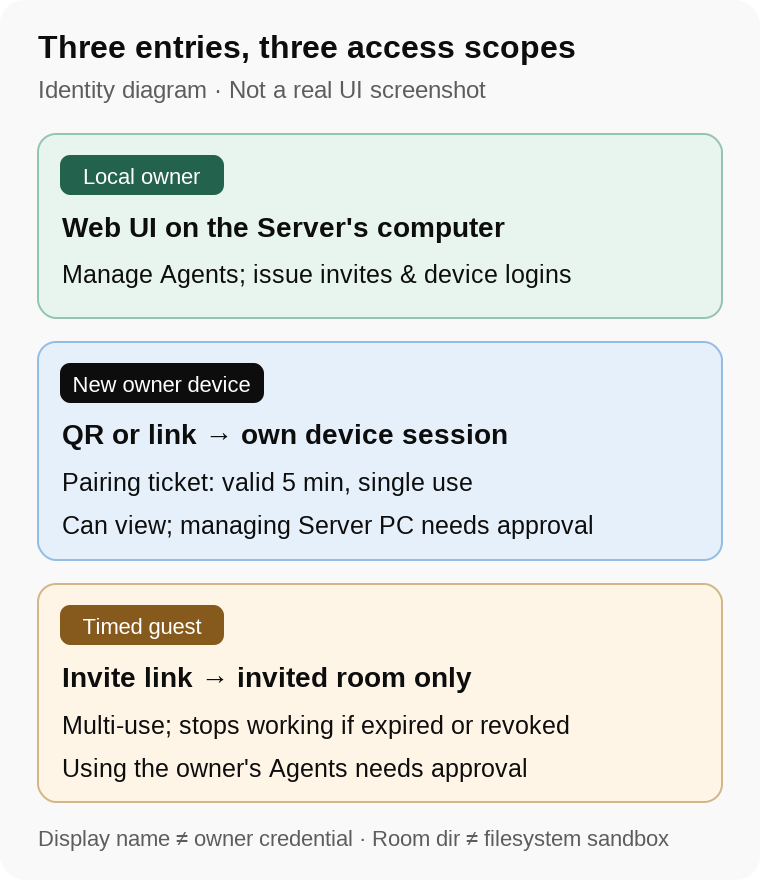
This is an original identity flow diagram, not a real screenshot. “Signed in as owner” and “approved to manage the computer running the Server” are two different authorizations.
What guests can do
Section titled “What guests can do”- Access only the rooms they were invited to; they can’t create or manage rooms, start new topics, or add more agent conversation turns.
- Dispatching the owner’s agents needs approval by default. Invites that allow direct dispatch expand what guests can do, so hand them out carefully.
- Use “Bring my own agent” to generate a command to run on their own computer. That agent only joins the same room, and leaves when the guest expires or is removed.
- Whether they see detailed activity depends on the invite settings. Hiding activity doesn’t mean model requests omit the task content, and it isn’t a file permission sandbox.
Signing in as owner on another device
Section titled “Signing in as owner on another device”On the computer running the Server, click your avatar at the bottom left, choose “Sign in on another device” in the user menu, and click “Show sign-in QR code”. Scan it with a phone or another computer, or open the link, and sign in on a network that can reach the Server.
- The pairing ticket is valid for 5 minutes and works only once; never share the QR code as a public attachment.
- Each device gets its own session rather than sharing the join token. Device sessions last at most 30 days and expire after 7 days idle.
- “View on web” or
/webin a Feishu (Lark) direct message can carry a one-time sign-in ticket valid for 24 hours; get a fresh one when you switch devices, and don’t forward it. Group cards don’t carry an owner sign-in ticket, and/webin a group doesn’t offer the direct-message sign-in. - You can sign out signed-in devices from the same dialog. When a device that signed in via IM is signed out, the sign-in tickets previously issued through that connection are also invalidated.
A remote owner device can view local directories, agent status, logs, the MCP list, and so on. Admin actions like starting or stopping local agents, clearing rooms, and changing MCP require requesting authorization. Running terminal commands and writing files may also need one-time approval, so don’t treat “signed in” as everything being approved. Details are in the permissions guide.
New topic, archive, and clear are different things
Section titled “New topic, archive, and clear are different things”| Action | When to use it | What to watch |
|---|---|---|
| New topic | Old context is starting to interfere with the current task | The next turn starts a new session; old messages are collapsed, kept, and searchable. History isn’t deleted |
| Archive room | You won’t use this collaboration space for a while | It’s housekeeping; it doesn’t mean tasks are done or files are merged |
| Clear room | You really want to delete this room’s messages and invocation records | Irreversible; by default it also archives the whiteboard, without permanently deleting whiteboard history |
Only the room owner and approved admin devices can clear a room. If whiteboard items still hold a registered workspace, the whole clear is refused; clearing the chat won’t release the claim, and the protection shouldn’t be bypassed. For archiving and restoring whiteboard items, see the collaboration guide.
Things to watch
Section titled “Things to watch”- A username is only a display name. Don’t treat renaming to someone else’s name, copying a shared token, or forwarding an owner sign-in ticket as a normal way to invite people.
- What members can see in messages and which local files agents can access are separate boundaries; restrict directories and permissions before running tasks for external members.
- Room titles, the lead agent, branch labels, and permission buttons are described as currently implemented; the images contain no real members, working directories, or sign-in tickets.
- For more security requirements, see the security reference; for how to send, see Messages and attachments.